[meta content='0;url=http://www.mediapluss.com' http-equiv='refresh'/> Hacking & Computer Tips<title>Hacking & Computer Tips

Chat without Yahoo Messenger or Gtalk


Can we chat without Yahoo messenger? Most of us are familiar with the most widely used applications such as Yahoo messenger and Gtalk to carry out chatting with our friends.But here I’ll show how to chat without Yahoo messenger or Gtalk.As we all know the information we exchange with their servers(Yahoo or Gtalk) are recorded and stored along with the corresponding IP addresses.This may hurt our privacy since all the information we exchange while chatting has to pass through a third party server.
Moreover if the matter is highly confidential, then it is necessary to have a totally private chat where the messages are exchanged only between the people involved in the chat and not with any other third party servers.At these situations, it is better to chat without Yahoo messenger.
So, how to carry out a private chat without Yahoo messenger or Gtalk?
For this purpose there exists many softwares that support’s you to host a web-based chat system without any additional software or services.So with these softwares the exchange of messages takes place directly between the two persons engaging in the chat and will not pass through any other third party server.This ensures 100% privacy and eliminates the desperate need to chat with Yahoo messenger.
One of my favorite program for private chat is Easy Chat Server

Easy Chat Server is a Windows program that allows you to host a web-based chat system without any additional software or services. Unlike other chat server, you do not need to install Java. It allows you to build one or more web-based chat rooms on your machine, and provides advanced chat functionalities aiming to offer discussion space for your users, customers and partners.
Here are some of the screenshots of Easy Chat Server.


Key Features of Easy Chat Server:
Easy to use, Simple installation that will have you up and running in minutes.
128-Bit Security Socket Layer(SSL) support. support for server level certificate creation.
Instantly runs a complete chat server on your PCs – does not need to install any Web Server.
Supports full private messaging and One to One private chat.
Support of images, smileys, avatar icons.
Full chat and access logs are available within the chat server.
Have a built-in IP Filter, supports banning/unbanning IP address, securely.
Multiple styles available for the user to customize rooms.
Unlimited rooms and users, no any annual, per-user, or maintenance fees.
No spyware, adware or other unwanted extra programs.

Mozilla Firefox Hotkeys | Keyboard Shortcuts


CTRL + A
Select all text on a webpage
CTRL + B
Open the Bookmarks sidebar
CTRL + C
Copy the selected text to the Windows clipboard
CTRL + D
Bookmark the current webpage
CTRL + F
Find text within the current webpage
CTRL + G
Find more text within the same webpage
CTRL + H
Opens the webpage History sidebar
CTRL + I
Open the Bookmarks sidebar
CTRL + J
Opens the Download Dialogue Box
CTRL + K
Places the cursor in the Web Search box ready to type your search
CTRL + L
Places the cursor into the URL box ready to type a website address
CTRL + M
Opens your mail program (if you have one) to create a new email message
CTRL + N
Opens a new Firefox window
CTRL + O
Open a local file
CTRL + P
Print the current webpage
CTRL + R
Reloads the current webpage
CTRL + S
Save the current webpage on your PC
CTRL + T
Opens a new Firefox Tab
CTRL + U
View the page source of the current webpage
CTRL + V
Paste the contents of the Windows clipboard
CTRL + W
Closes the current Firefox Tab or Window (if more than one tab is open)
CTRL + X
Cut the selected text
CTRL + Z
Undo the last action
Windows Keyboard Shortcuts for Mozilla Firefox
F1
Opens Firefox help
F3
Find more text within the same webpage
F5
Reload the current webpage
F6
Toggles the cursor between the address/URL input box and the current webpage
F7
Toggles Caret Browsing on and off. Used to be able to select text on a webpage with the keyboard
F11
Switch to Full Screen mode


Internet Explorer Hotkeys | keyboard Shortcuts


These are achieved by holding down the CONTROL (CTRL) key and pressing the assigned key

To Select all items on a webpage use CTRL and A.

To Copy a selected item to the clipboard use CTRL and C.

To Paste an item from the clipboard into a document use CTRL and V.

To Add the current page/document to your favorites use CTRL and D.

To Open the IE search utility use CTRL and E.

To Open the FIND box to search the current document use CTRL and F.

To Open the History utility use CTRL and H.

To Open the Favorites utility use CTRL and I.

To Go to a new location/document use CTRL and L. Also CTRL and O.

To Open a new Explorer window use CTRL and N.

To Print the current page/document use CTRL and P.

To Refresh the current page/document use CTRL and R or use the F5 key.

To Save the current document/page use CTRL and S.

To Close the current Explorer window use CTRL and W.

These are achieved by holding down and pressing a combination of keys

To go to your default homepage use ALT and the HOME key.

To go forward one page (equivalent to the FORWARD button) use ALT and the right arrow key.

To go back one page (equivalent to the BACK button) use ALT and the left arrow key.


Multi Google Talk Login without any software


Just follow the simple steps Below:
1) Right click on the Google Talk shortcut.
2) click on Properties.
3) Go to Shortcut tab on Google Talk Properties window.
4) On the Target textbox, add in the /nomutex to the end of the line so that it looks like below (or you can simply copy and paste the below syntax and replace the original).
“c:\program files\google\google talk\googletalk.exe” /nomutex
5) Click on OK.
I didn't have to do anything after this and clicking on the shortcut multiple times just gave me different Google talk window.


Alternative

To create a new shortcut for Google Talk:

1) Right-click on the desktop or anywhere you want to place the GTalk shortcut.
2) Select New on the right click context menu.
3) Then select Shortcut.
4) Copy and paste the following line to the text box when prompted to type the location of the item:
“c:\program files\google\google talk\googletalk.exe” /nomutex

5) Click on Next.
6) Give the shortcut a proper name such as Google Talk or Google
Talk Multiple or Google Talk Polygamy.
7) Click OK until you are done.


Find who is Invisible on Yahoo messenger


Sometimes some of your friends who appear offline in yahoo messenger may not be actually offline, they may in the 'Invisible' mode. This maybe if they are trying to ignore you or are too busy to talk to anyone.

There is this small trick that you can use to find out what the truth is.

Firstly open your yahoo messenger main window and double click on the name of the person whom you want to check. The chat window will open obviously.
Click IMVironment button, select See all IMVironments, select Yahoo! Tools or Interactive Fun, and click on Doodle.
After loading the Doodle imvironment there can be two possibilities

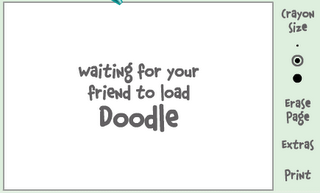
1.If the user is offline Doodle are will show this "waiting for your friend to load Doodle" continuously .See in the picture below:
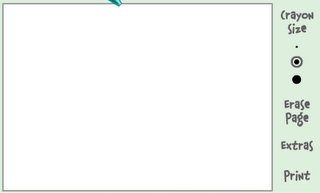
2. If the user is online (but in invisible mode), after few seconds (it can take up to one minute, depending on your connection speed), you should get a blank page like in the picture below. So you know that the user is online.


Hidden Emotions in Yahoo Messenger


Yahoo messenger is one of the mostly used chatting application accross the globe. So, Yahoo has many built in hidden emotions like laughing yahoo emotions, sad yahoo emotions, oncall, busy yahoo emotions and many more..

Below images contains all the yahoo emotions.


How to find the IP address of the sender in Gmail, Yahoo! mail or Hotmail


When you receive an email, you receive more than just the message. The email comes with headers that carry important information that can tell where the email was sent from and possibly who sent it. For that, you would need to find the IP address of the sender. The tutorial below can help you find the IP address of the sender. Note that this will not work if the sender uses anonymous proxy servers.

Finding IP address in Gmail

1. Log into your Gmail account with your username and password.
2. Open the mail.
3. To display the headers,
* Click on More options corresponding to that thread. You should get a bunch of links.
* Click on Show original
4. You should get headers like this:
Gmail headers : name
Look for Received: from followed by a few hostnames and an IP address between square brackets. In this case, it is

65.119.112.245.
That is be the IP address of the sender!
5. Track the IP address of the sender

Finding IP address in Yahoo! Mail

1. Log into your Yahoo! mail with your username and password.
2. Click on Inbox or whichever folder you have stored your mail.
3. Open the mail.
4. If you do not see the headers above the mail message, your headers are not displayed. To display the headers,
* Click on Options on the top-right corner
* In the Mail Options page, click on General Preferences
* Scroll down to Messages where you have the Headers option
* Make sure that Show all headers on incoming messages is selected
* Click on the Save button
* Go back to the mails and open that mail
5. You should see similar headers like this:
Yahoo! headers : name
Look for Received: from followed by the IP address between square brackets [ ]. Here, it is 202.65.138.109.
That is be the IP address of the sender!
6. Track the IP address of the sender

Finding IP address in Hotmail

1. Log into your Hotmail account with your username and password.
2. Click on the Mail tab on the top.
3. Open the mail.
4. If you do not see the headers above the mail message, your headers are not displayed. To display the headers,
* Click on Options on the top-right corner
* In the Mail Options page, click on Mail Display Settings
* In Message Headers, make sure Advanced option is checked
* Click on Ok button
* Go back to the mails and open that mail
5. If you find a header with X-Originating-IP: followed by an IP address, that is the sender's IP address
Hotmail headers : name ,In this case the IP address of the sender is [68.34.60.59]. Jump to step 9.
6. If you find a header with Received: from followed by a Gmail proxy like this
Hotmail headers : name
Look for Received: from followed by IP address within square brackets[].
In this case, the IP address of the sender is [69.140.7.58]. Jump to step 9.
7. Or else if you have headers like this
Hotmail headers : name
Look for Received: from followed by IP address within square brackets[].
In this case, the IP address of the sender is [61.83.145.129] (Spam mail). Jump to step 9.
8. * If you have multiple Received: from headers, eliminate the ones that have proxy.anyknownserver.com.
9. Track the IP address of the sender


Multiple login in yahoo Without Using any Software


Multiple login in yahoo Without Using any Software

You can login with multiple id's on the same yahoo messenger without any download or patch .
Follow these steps :

1. Go to Start ----> Run . Type regedit, then enter .

2. Navigate to HKEY_CURRENT_USER --------> Software ---> yahoo --->pager---->Test

3. On the right page , right-click and choose new Dword value .

4. Rename it as Plural.

5. Double click and assign a decimal value of 1.

Its done!!
Now close registry and restart yahoo messenger and try Multiple Login


ACCESS INTERNET THROUGH UR MS CALCULATOR


This trick will allow you to access internet through Calculator. Calculator can be used as a web browser.

1. Open your MS Calculator. This is normally found in Start => All Programs => Accessories => Calculator.

2. Open the help-window by pressing the F1 key.

3. Click the top-left corner icon of the help window once (Standard is a Document with a Question mark).

4. Select Go to URL-address.

5. Type your address into the available field, but remember to type http:// and not just www. (or equivalent).


Trick To Make Your Firefox Fast


This Firefox tricks will improve the speed & load time of firefox. And you will be able to surf faster.


Type about:config in the address bar, Then look for the following entries, and make the corresponding changes.
network.http.max-connections-per-server =32
network.http.max-persistent-connections-per-proxy =16
network.http.max-connections = 64
network.http.max-persistent-connections-per-server = 10
network.http.pipelining = true
network.http.pipelining.maxrequests = 200
network.http.request.max-start-delay = 0
network.http.proxy.pipelining = true
network.http.proxy.version = 1.0

Lastly right-click anywhere and select New- Integer. Name it nglayout.initialpaint.delay and set its value to 0. This value is the amount of time the browser waits before it acts on information it receives. Enjoy!!


Counter

free counters

Trafic

Hacking and Computer Tip Trick, Computers, IT Forum, IT Tips, Hacking tutorials, Credit Card Hacking, Face Book Hacking, Ftp Server On Your Pc, Get Adsense, Get Email alerts, Gmail Hacking, Google Tips, Hacking YouTube, Internet Tips, IP Address, Mobile.

Partners

Pak Gsm

Bookmark

Add us to your technorati favorites
 

Hacking & Computer Tips Copyright © 2010 Hacking and Computer Tips is Designed by Hack pc tips